 API-FOOTBALL
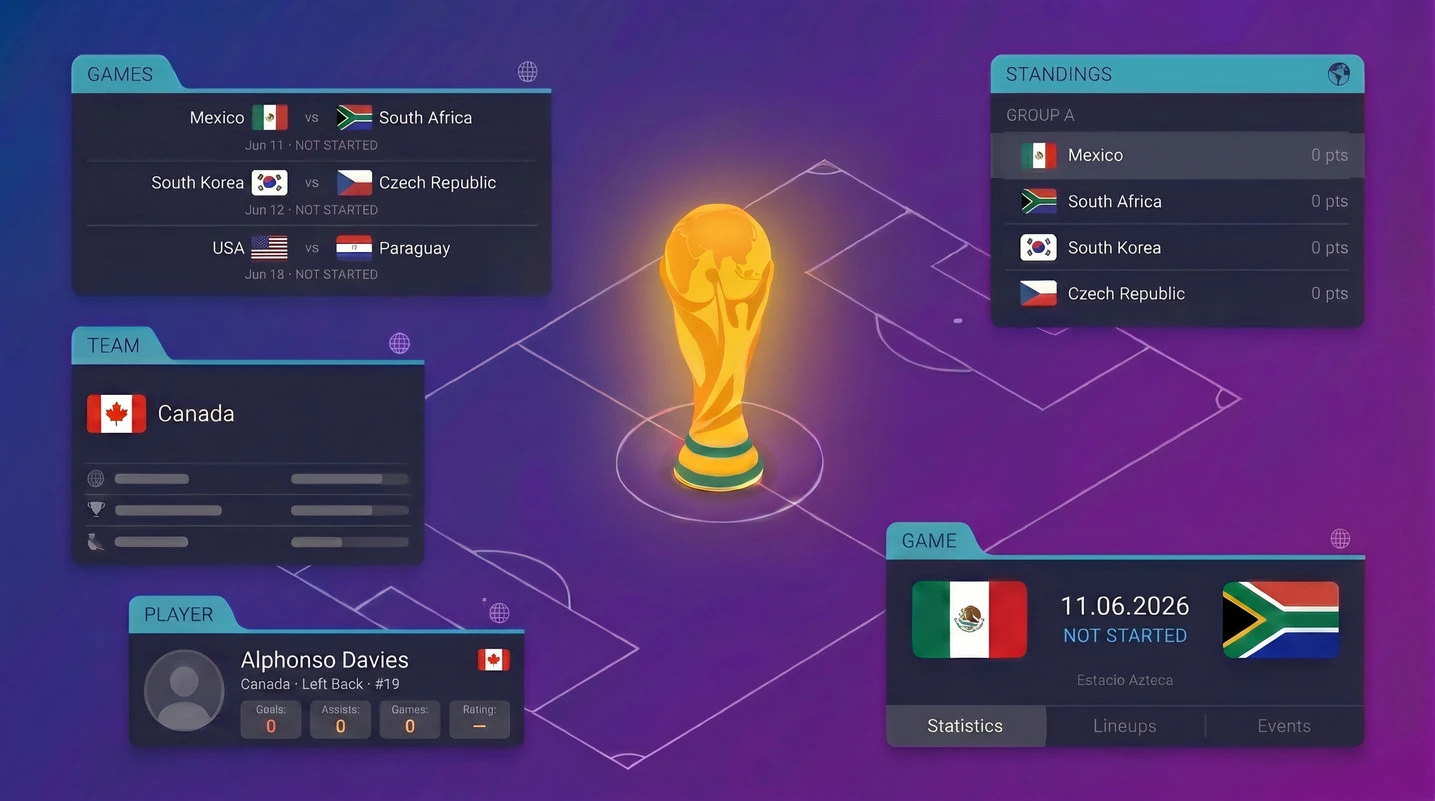
As we explored in the article “FIFA WORLD CUP 2026: Guide to Using Data with API-SPORTS”, the tournament will be one of the most watched sporting events in the world and will generate a massive amount of data.
With API-SPORTS widgets, you can turn that data into ready-to-use interfaces in minutes, without having to handle API calls yourself.
This article shows how to use widgets to quickly build a World Cup page that lets visitors browse the schedule, open match details, follow the standings, and explore player information.
1- Why use widgets?
API-SPORTS widgets are designed to remove the complexity of working with sports data. Instead of writing API calls or parsing JSON responses, you can directly embed ready-to-use elements into your website.
Widgets are therefore a great option for non-developers, as well as for developers who want to save time on standard building blocks like schedules, standings, and player profiles.
Once the widgets are integrated, they automatically handle data fetching, rendering, and interactions such as opening match details or showing standings in a modal. This lets you focus on layout and user experience instead of low-level implementation.
2- Widgets useful for the FIFA World Cup 2026
For the FIFA World Cup, some widgets are particularly relevant because they cover the core needs of a site or page dedicated to the tournament. The most useful in this context are:
- League widget → Displays the full schedule of a competition, including today’s matches, completed matches, and upcoming matches.
- Game widget → Shows the full details of a single game, including events, lineups, statistics and players statistics.
- Standings widget → Displays the standings of a league for a given season, including team ranks, points, and recent form.
- Player widget → Displays a complete profile for a selected player, including statistics and related information.
Together, these four widgets cover most of what users expect during the World Cup: knowing when games are played, following results, understanding the standings, and discovering key players.
3- Configuring the widgets for the World Cup
To configure your widgets, the easiest way is to use the Widget Builder available in the dashboard, then select Football in the Sport dropdown. This tool lets you choose which widget to display, set its parameters, preview the result, and copy the generated code to integrate it directly into your site.
In the following sections, we focus on a configuration that lets you build a full World Cup page with a single global setup, instead of configuring each widget separately.
Before going any further, there’s one important thing to keep in mind, widgets automatically refresh their content. This update behavior is controlled by the refresh parameter, which is set to 15 seconds by default. You can change this value if you want to reduce the number of requests. For example, if you want to refresh the data every minute, you can set data-refresh=”60”, and if you want to completely disable automatic updates, you can use data-refresh=”false”.
Rather than configuring every widget instance one by one, the most efficient approach is to define a single global configuration widget. This global config applies the main settings for the whole page, including the sport, language, theme, refresh interval, default league and season, and the targets used to load related content dynamically.
For the FIFA World Cup 2026, a global configuration block can look like this:
  <api-sports-widget
    data-type="config"
    data-key="YOUR_API_KEY"
    data-sport="football"
    data-lang="en"
// Available themes: white, grey, dark, blue
    data-theme="white"
    data-show-errors="true"
    data-show-logos="true"
    data-refresh="15"
    data-player-injuries="true"
    data-team-squad="true"
    data-team-statistics="true"
    data-player-statistics="true"
    data-game-tab="statistics"
    data-standings="true"
    data-target-standings="true"
// Games become clickable and load their content inside the specified block
    data-target-game="#game-content .card-body"
// When a player is clicked, their details open in a modal
    data-target-player="modal"
// Can be set to "modal" or a CSS selector
    data-target-team="modal"
    data-tab="results"
    data-league="1"
    data-season="2026"
  ></api-sports-widget>
Here, the most important settings are the World Cup identifiers data-league=”1” and data-season=”2026”, which define the competition context for the widgets. The other options control how content is displayed, refreshed, and loaded into the page, making the overall integration much simpler than configuring each widget separately.
With this global configuration in place, you can drop League, Game, Standings, Team, and Player widgets into your page without re-specifying all those parameters on every instance.
4- A ready-to-use World Cup page
Once the global configuration is in place, you can embed the widgets into a simple HTML layout and get a working World Cup page almost immediately.
The example below combines a league list, a game details area, and a standings block in a single interface, while the global configuration widget handles the shared behavior and interactions.
<!DOCTYPE html>
<html lang="en" data-bs-theme="dark">

<head>
  <meta charset="UTF-8" />
  <meta name="viewport" content="width=device-width, initial-scale=1.0" />
  <title>Widget V3</title>
  <script src="https://cdn.jsdelivr.net/npm/[email protected]/dist/js/bootstrap.bundle.min.js"
    integrity="sha384-j1CDi7MgGQ12Z7Qab0qlWQ/Qqz24Gc6BM0thvEMVjHnfYGF0rmFCozFSxQBxwHKO"
    crossorigin="anonymous"></script>
  <link href="https://cdn.jsdelivr.net/npm/[email protected]/dist/css/bootstrap.min.css" rel="stylesheet"
    integrity="sha384-4Q6Gf2aSP4eDXB8Miphtr37CMZZQ5oXLH2yaXMJ2w8e2ZtHTl7GptT4jmndRuHDT" crossorigin="anonymous" />
  <script type="module" crossorigin src="https://widgets.api-sports.io/3.1.0/widgets.js"></script>
</head>

<body style="margin:0;">

  <div class="content p-3">

    <div class="row">
      <div class="col-3">
        <div id="leagues-list" class="card border-0 shadow-sm">
          <div class="card-body p-0">
            <api-sports-widget data-type="league"></api-sports-widget>
          </div>
        </div>
      </div>

      <div class="col-4">
        <div id="game-content" class="card border-0 shadow-sm">
          <div class="card-body p-0">
            <div id="games-list">
              <api-sports-widget data-type="game" data-game-id="1489369"></api-sports-widget>
            </div>
          </div>
        </div>
      </div>

      <div class="col-5">
        <div class="card border-0 shadow-sm">
          <div class="card-body p-0">
            <div id="standings-content">
              <api-sports-widget data-type="standings"></api-sports-widget>
            </div>
          </div>
        </div>
      </div>

    </div>
  </div>

  <!-- Config widget -->
  <api-sports-widget
    data-type="config"
    data-key="YOUR_API_KEY"
    data-sport="football"
    data-lang="en"
    data-theme="white"
    data-show-errors="true"
    data-show-logos="true"
    data-refresh="15"
    data-player-injuries="true"
    data-team-squad="true"
    data-team-statistics="true"
    data-player-statistics="true"
    data-game-tab="statistics"
    data-standings="true"
    data-target-standings="true"
    data-target-game="#game-content .card-body"
    data-target-player="modal"
    data-target-team="modal"
    data-tab="results"
    data-league="1"
    data-season="2026"
  ></api-sports-widget>

  <style type="text/css">
    api-sports-widget {
      --primary-font-size: 0.82rem;
      --secondary-font-size: .8rem;
      --button-font-size: .8rem;
      --title-font-size: .9rem;
      height: 80vh;
    }
    body .modal-widget {
      width: 90%;
      max-width: 700px;
    }
    body .modal-widget-content {
      padding: 0;
      height: 60vh;
    }
  </style>
</body>

</html>
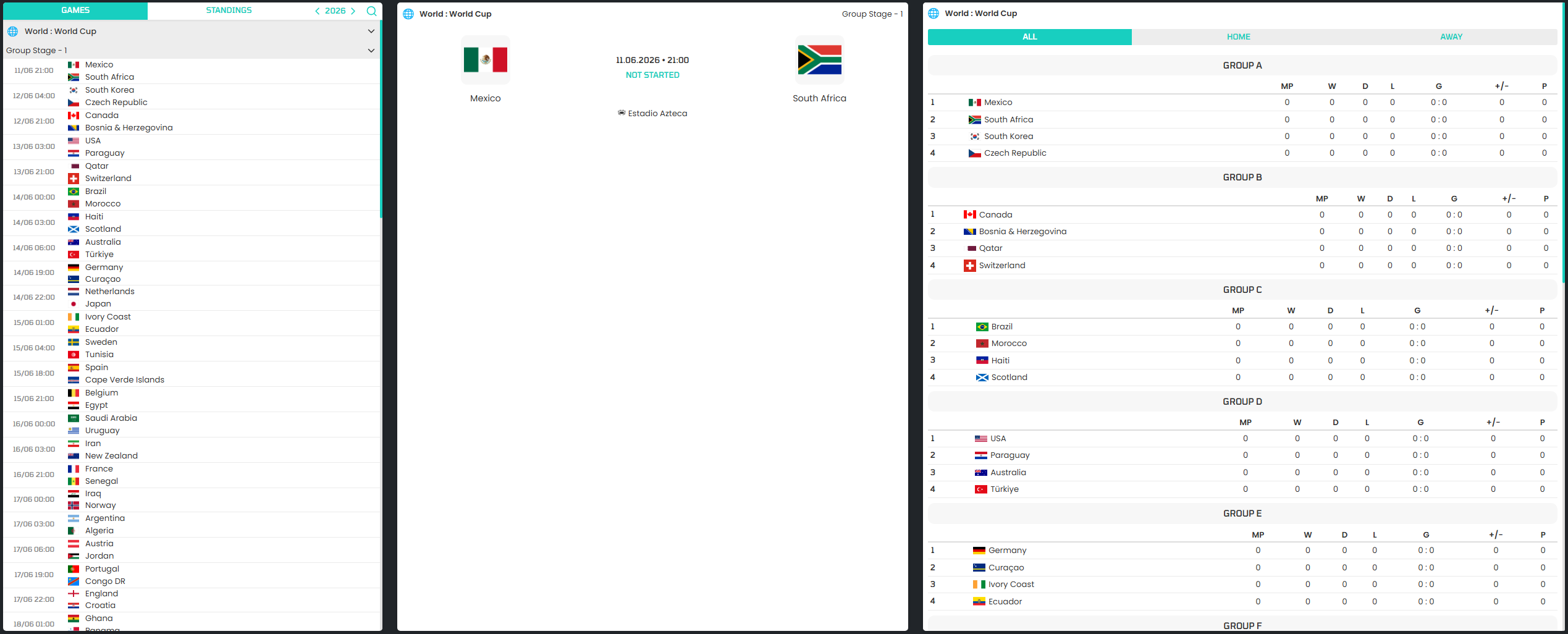 With this layout, the left column lets users browse the competition and see the list of games, the middle column displays the currently selected match, the right column shows the standings, and modals are used to display additional details such as teams, and players.
The global configuration widget connects these blocks together, so users can interact with the page without requiring a separate manual configuration for each widget instance. You only need to plug in your API key and adjust a few parameters if necessary.
5- Customizing the World Cup page
Once your page is working, you can also adapt the widgets to your site design.
API-SPORTS provides built-in themes through the data-theme parameter, and the widgets documentation also explains how to create a custom theme if you want a closer visual match with your own branding.
That means you can start with a ready-to-use World Cup page, then progressively adjust the colors and overall style so the widgets feel more integrated into your website. Font sizes, spacing, and other visual aspects can be fine-tuned via CSS variables such as --primary-font-size, --secondary-font-size, --button-font-size, and --title-font-size.
In this configuration, several data-target parameters use the modal value. This means that when a user clicks on a team or a player inside a widget, the related content is opened in a modal window instead of replacing the current page section. This approach keeps the page layout lightweight while still giving users access to detailed information, and it is especially useful on World Cup pages where visitors frequently switch between fixtures, standings, and player profiles.
For a practical walkthrough of these customization options, you can refer to the article “How to create a sports website in just a few minutes using widgets” and to the custom theme section of the widgets documentation.
Conclusion
API-SPORTS widgets provide a simple and fast way to display FIFA World Cup 2026 data on a website. Thanks to the Widget Builder, you can configure, preview, and integrate useful components like the competition schedule, game details, standings, or player profiles in just a few steps.
For more information about widgets, you can read the article “Introducing the API-SPORTS Widget Builder”.
Finally, to reduce unnecessary API calls and preserve your quota, it is recommended to implement a caching mechanism. This helps avoid hitting the API on every page load or every automatic widget refresh. To learn more about this topic, you can read the article “How To Optimize Widgets, Cache And Security Tutorial”.
The API-SPORTS Team